Overview
In this lab, I set up a hybrid identity environment by joining a Red Hat Enterprise Linux 9 machine to a Windows Server 2022 Active Directory (AD) domain, both running as EC2 instances on AWS. The goal was to demonstrate cross-platform identity integration, a real-world scenario where Linux servers need to authenticate users through a centralized Windows-managed directory.
This is a critical skill in enterprise environments where organizations run mixed OS infrastructures and want a single source of truth for user authentication and access control.
Infrastructure used:
| Role | OS | Private IP |
|---|---|---|
| Domain Controller | Windows Server 2022 | 172.31.41.10 |
| Domain Client | RHEL 9 | 172.31.43.75 |
Phase 1 - Launching and Configuring the Windows Server 2022 Domain Controller
Why Windows Server 2022?
I chose Windows Server 2022 as the Domain Controller because it is the most current Long-Term Servicing Channel (LTSC) release and Red Hat officially supports this combination with RHEL 9. Using a supported pairing avoids cryptographic compatibility issues that can surface with older AD functional levels.
AWS Setup
I launched a Windows Server 2022 Base EC2 instance and assigned it a static private IP (172.31.41.10).
Phase 2 - Installing Active Directory Domain Services
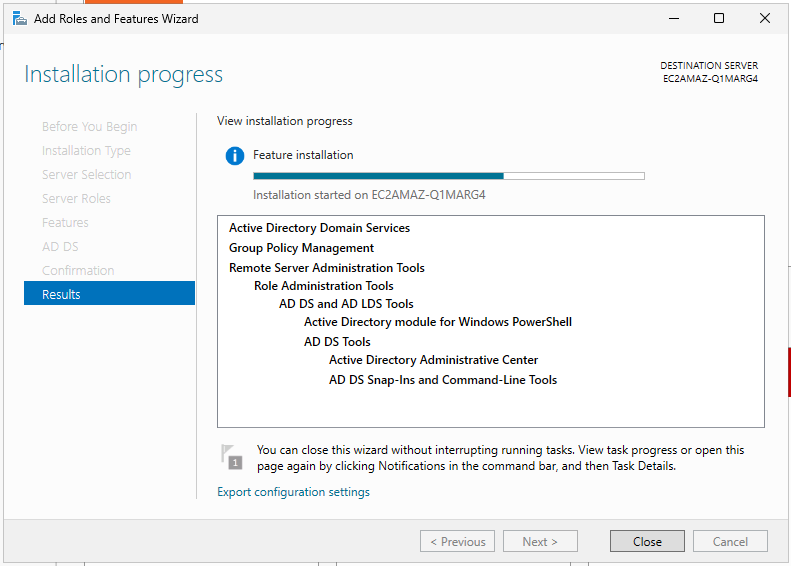
Once logged in via RDP with the decrypted Administrator password from the AWS Console, I opened Server Manager and added the Active Directory Domain Services role. AD DS is the Windows service that handles authentication, authorization, and directory lookups, essentially the backbone of any Windows-managed network. The DNS role is bundled automatically because AD relies heavily on DNS for locating domain controllers.
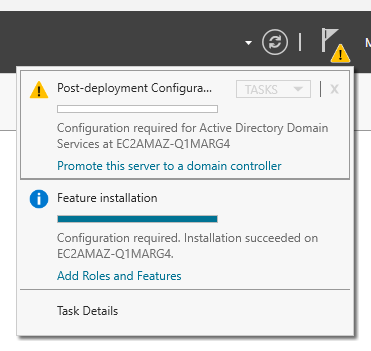
After installation, the Notifications flag in Server Manager prompts you to promote the server to a Domain Controller. This step is what actually turns the Windows server from a plain member server into an authoritative directory.
Phase 3 - Promoting the Server to a Domain Controller
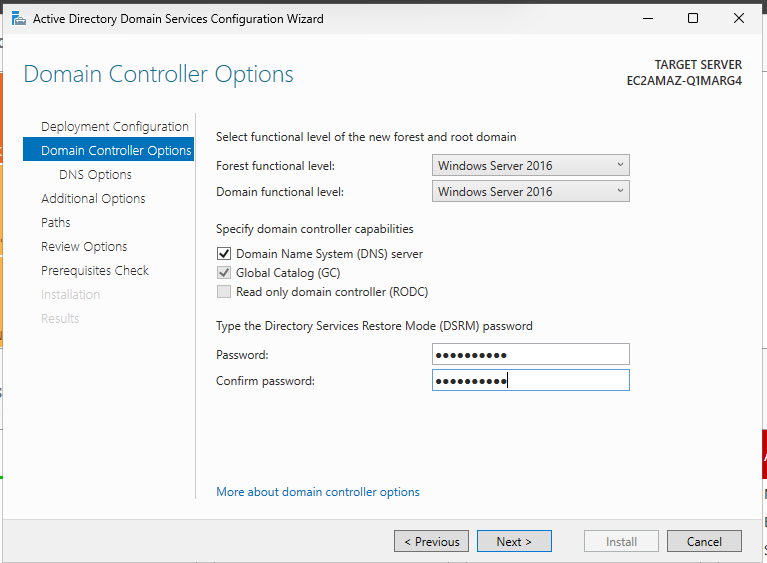
The Active Directory Domain Services Configuration Wizard walks through the promotion process.
Key decisions I made here:
- New Forest: Since this is a greenfield lab with no existing domain, I selected Add a new forest.
- Root Domain Name:
lab.example.com- a non-routable domain safe for internal lab use. - DNS Server: Left checked. The DC will serve as the DNS authority for the domain.
- Forest/Domain Functional Level: Left at Windows Server 2016, which is standard when deploying on 2022 and provides broad compatibility.
- DSRM Password: Set a Directory Services Restore Mode password. This is a recovery password used to boot the DC into a special repair mode, it should be stored securely.
The wizard generates a warning about DNS delegation, this is safe to ignore in a self-contained lab where no parent DNS zone exists. After accepting the defaults, the server reboots and the domain is live.
Phase 4 - Post-Deployment: DNS and User Setup
Pointing the DC to Itself for DNS
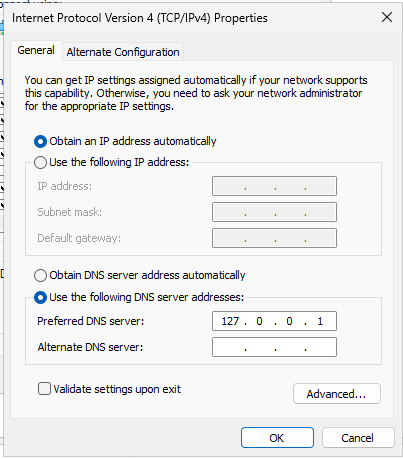
After the reboot, the Domain Controller needs to be its own DNS resolver. Active Directory is DNS-dependent, every lookup for domain resources goes through DNS. I navigated to Network Connections → Ethernet Properties → IPv4 and set the Preferred DNS Server to 127.0.0.1 (localhost).
Creating a Test Domain User
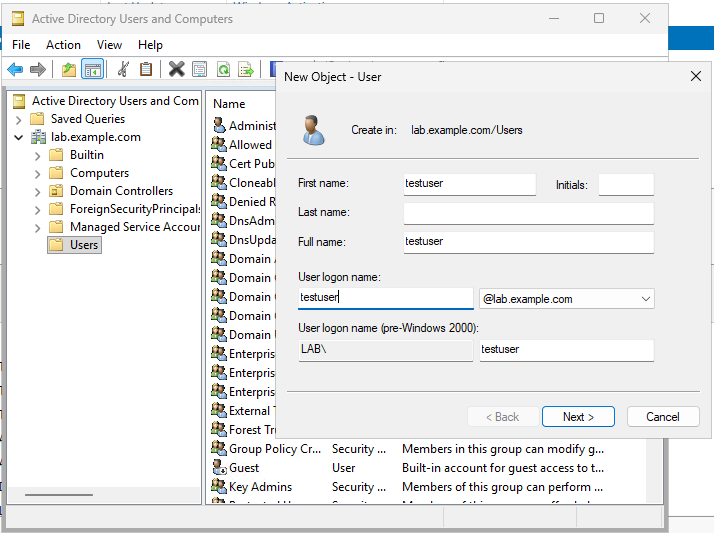
To validate the Linux join later, I created a standard domain user account.
- Opened Active Directory Users and Computers from Windows Administrative Tools.
- Expanded
lab.example.com, right-clicked the Users container, and selected New → User. - Created user:
testuserwith a secure password, unchecking “User must change password at next logon” for lab convenience.
Credentials used in this lab:
| Account | Format |
|---|---|
| Domain Administrator | LAB\Administrator |
| Test User | LAB\testuser |
Phase 5 - Preparing and Joining RHEL 9 to the Domain
This is where the Linux side comes in. The goal is to make RHEL 9 a realm member, meaning it will trust the AD domain for authentication, and AD users can log into the Linux machine using their domain credentials.
Step 1 - Install Required Packages
sudo dnf update -y

sudo dnf install realmd sssd oddjob oddjob-mkhomedir adcli samba-common-tools krb5-workstation chrony -y
Why these packages?
| Package | Purpose |
|---|---|
realmd | Discovers and joins identity domains (the high-level tool) |
sssd | System Security Services Daemon, handles authentication caching and user lookups |
oddjob / oddjob-mkhomedir | Automatically creates home directories on first login |
adcli | Low-level tool that actually creates the computer account in AD |
samba-common-tools | Provides Samba utilities needed for AD communication |
krb5-workstation | Kerberos client, AD authentication is Kerberos-based |
chrony | NTP time sync - Kerberos fails if clocks are more than 5 minutes apart |
Step 2 - Configure DNS
The RHEL machine must be able to resolve the AD domain. I edited /etc/resolv.conf to point DNS at the Windows DC:
sudo vi /etc/resolv.conf# Generated by NetworkManager
search lab.example.com ec2.internal
nameserver 172.31.41.10
nameserver 172.31.0.2
The DC’s IP (172.31.41.10) is listed first, so all lab.example.com queries resolve correctly.
Step 3 - Time Synchronization
Kerberos (the protocol AD uses for authentication tickets) has a strict 5-minute clock skew tolerance. If the clocks between the RHEL machine and the DC drift beyond that, authentication will fail. I enabled chronyd and forced an immediate sync:
sudo systemctl enable --now chronyd
sudo chronyc makestep
Output:
200 OK
✅ 200 OK confirms the time step was applied successfully.
Step 4 - Set Crypto Policy for AD Compatibility
RHEL 9 disables legacy encryption types like RC4 by default. Active Directory may still offer these during Kerberos negotiation, and if RHEL refuses them the handshake fails. The AD-SUPPORT-LEGACY subpolicy re-enables RC4 on the RHEL side as a fallback, it doesn’t force its use, but ensures RHEL won’t reject it if AD proposes it.
sudo update-crypto-policies --set DEFAULT:AD-SUPPORT-LEGACYOutput:
Setting system policy to DEFAULT:AD-SUPPORT-LEGACY
Note: System-wide crypto policies are applied on application start-up.
It is recommended to restart the system for the change of policies to fully take place.
Step 5 - Discover the Domain
Before joining, I used realm discover to confirm that RHEL can see the AD domain and knows which packages are required by RHEL machine to join and talk to AD.
sudo realm discover lab.example.comOutput:
lab.example.com
  type: kerberos
  realm-name: LAB.EXAMPLE.COM
  domain-name: lab.example.com
  configured: no
  server-software: active-directory
  client-software: sssd
  required-package: oddjob
  required-package: oddjob-mkhomedir
  required-package: sssd
  required-package: adcli
  required-package: samba-common-tools
The configured: no status is expected at this point, it means the domain is reachable but the machine hasn’t joined yet. The discovery confirms the domain is Kerberos-based and backed by Active Directory.|
Step 6 - Join the Domain
sudo realm join lab.example.com -U Administrator --verboseThe -U Administrator flag is essentially saying:
“I have permission to add computers to this domain, here’s the AD admin account to prove it.”
The --verbose flag shows every step of the join process, which is useful for troubleshooting. Here’s what happened:
 * Resolving: _ldap._tcp.lab.example.com
 * Performing LDAP DSE lookup on: 172.31.41.10
 * Successfully discovered: lab.example.com
Password for Administrator@LAB.EXAMPLE.COM:
 * Required files: /usr/sbin/oddjobd, /usr/libexec/oddjob/mkhomedir, /usr/sbin/sssd, /usr/sbin/adcli
 * Using domain name: lab.example.com
 * Calculated computer account name from fqdn: IP-172-31-43-75
 * Sending NetLogon ping to domain controller: 172.31.41.10
 * Received NetLogon info from: EC2AMAZ-Q1MARG4.lab.example.com
 * Looked up short domain name: LAB
 * Looked up domain SID: S-1-5-21-2430317447-3638852789-1411296010
 * Generated 120 character computer password
 * A computer account for IP-172-31-43-75$ does not exist
 * Found well known computer container at: CN=Computers,DC=lab,DC=example,DC=com
 * Created computer account: CN=IP-172-31-43-75,CN=Computers,DC=lab,DC=example,DC=com
 * Set computer password
 * Retrieved kvno '2' for computer account in directory
 * Added the entries to the keytab: IP-172-31-43-75$@LAB.EXAMPLE.COM
 * /usr/bin/systemctl enable sssd.service
 * /usr/bin/systemctl restart sssd.service
 * Successfully enrolled machine in realm
The key line is “Successfully enrolled machine in realm”, the RHEL machine now has a computer account in Active Directory, just like a Windows machine would.
Phase 6 - Post-Join SSSD Configuration
By default, SSSD requires users to log in with their fully qualified name (e.g., testuser@lab.example.com). For usability, I edited the SSSD configuration to allow short usernames:
sudo vi /etc/sssd/sssd.confThe final configuration looks like this:
[sssd]
domains = lab.example.com
config_file_version = 2
services = nss, pam

[domain/lab.example.com]
default_shell = /bin/bash
krb5_store_password_if_offline = True
cache_credentials = True
krb5_realm = LAB.EXAMPLE.COM
realmd_tags = manages-system joined-with-adcli
id_provider = ad
fallback_homedir = /home/%u
ad_domain = lab.example.com
use_fully_qualified_names = False
ldap_id_mapping = True
access_provider = ad
The important settings:
use_fully_qualified_names = False- allows logging in astestuserinstead oftestuser@lab.example.comfallback_homedir = /home/%u- creates home directories under/home/usernamedefault_shell = /bin/bash- gives domain users a proper shell
After editing, restart the services:
sudo systemctl restart sssd
sudo systemctl restart oddjobd
Phase 7 - Verification
With everything configured, I ran a series of tests to confirm the integration was working end-to-end.
Check Realm Membership
realm listOutput:
lab.example.com
  type: kerberos
  realm-name: LAB.EXAMPLE.COM
  domain-name: lab.example.com
  configured: kerberos-member
  server-software: active-directory
  client-software: sssd
  required-package: oddjob
  required-package: oddjob-mkhomedir
  required-package: sssd
  required-package: adcli
  required-package: samba-common-tools
  login-formats: %U
  login-policy: allow-realm-logins
configured: kerberos-member confirms the machine is a domain member. The login-formats: %U reflects the short-name login we configured.
Resolve the AD User from Linux
getent passwd testuserOutput:
testuser:*:665401103:665400513:testuser:/home/testuser:/bin/bash
RHEL is resolving testuser through SSSD from AD, the UID and GID are generated from the AD SID via LDAP ID mapping.
Check Group Membership
id testuserOutput:
uid=665401103(testuser) gid=665400513(domain users) groups=665400513(domain users)
The user belongs to the Domain Users group, pulled directly from Active Directory.
Obtain a Kerberos Ticket
kinit testuser
klist
Output:
Ticket cache: KCM:1000
Default principal: testuser@LAB.EXAMPLE.COM

Valid starting       Expires              Service principal
05/14/2026 19:35:09  05/15/2026 05:35:09  krbtgt/LAB.EXAMPLE.COM@LAB.EXAMPLE.COM
        renew until 05/21/2026 19:34:58
kinit authenticates testuser against the AD domain and retrieves a Ticket Granting Ticket (TGT) from the Kerberos Key Distribution Center (the DC). klist confirms the ticket is valid and shows its expiry, 10 hours by default, with a 7-day renewal window.
Summary
By the end of this lab, RHEL 9 was fully integrated into a Windows Server 2022 Active Directory domain running on AWS. The key takeaways:
realmdis the modern, recommended tool for joining Linux systems to AD, it handles discovery, package checks, and the join in a single command.- SSSD is the glue that keeps AD authentication working day-to-day, including offline caching.
- Kerberos time sync is non-negotiable,
chronydmust be running before you attempt the join. - Crypto policy alignment is a common friction point on RHEL 9, the
AD-SUPPORT-LEGACYmodifier resolves this without fully weakening the system’s security posture.
This setup is the foundation for more advanced scenarios like restricting logins to specific AD security groups, delegating sudo rights via AD groups, and automating the join process at instance launch with cloud-init.
Lab environment: AWS EC2 | Windows Server 2022 Base + RHEL 9 | May 2026