Overview
In this lab, I hardened a Windows Server (172.31.24.20) configured to serve as a DNS server. The goal of system hardening is to reduce the attack surface of a server by removing or disabling anything that isn’t required for it to perform its primary function, in this case, resolving DNS queries. This follows the principle of least functionality: a server should only do what it needs to do, and nothing more.
The hardening steps I performed covered four main areas:
- Removing unnecessary server roles (IIS / HTTP)
- Hardening and renaming the default Administrator account
- Disabling unnecessary user accounts and services
- Using AppLocker to restrict which applications can execute on the server
Before making any changes, I established a baseline by scanning the server to see its current exposure.
Environment
| Component | Details |
|---|---|
| Target Server | Windows Server 2022 172.31.24.20 |
| Scanning Host | Linux console 172.31.24.30 |
| Tool Used | Nmap 7.80 |
Step 1 - Baseline Scan with Nmap
Before hardening anything, I ran an Nmap scan against the Windows Server to get a clear picture of which ports were open and what services were exposed. This is important because you can’t effectively reduce your attack surface if you don’t first know what that surface looks like.
The -Pn flag tells Nmap to skip the ping probe and treat the host as online. This is necessary because Windows Servers typically block ICMP ping by default, which would cause a standard scan to report the host as down even when it isn’t.
nmap -Pn 172.31.24.20Output:
pslearner@ip-172-31-24-30:~$ nmap -Pn 172.31.24.20
Starting Nmap 7.80 ( https://nmap.org ) at 2026-05-11 01:25 UTC
Nmap scan report for ip-172-31-24-20.ec2.internal (172.31.24.20)
Host is up (0.042s latency).
Not shown: 994 filtered ports
PORT     STATE SERVICE
22/tcp   open  ssh
53/tcp   open  domain
80/tcp   open  http
135/tcp  open  msrpc
445/tcp  open  microsoft-ds
3389/tcp open  ms-wbt-server

Nmap done: 1 IP address (1 host up) scanned in 23.42 seconds
Analysis: Port 53 (DNS) is expected and required. Port 80 (HTTP) should not be open on a DNS server, it means a web server role (IIS) is installed and actively listening for connections. Ports 135 (RPC) and 3389 (RDP) are left open in this lab environment for management access, but in a production environment these would typically be restricted or disabled as well.
Step 2 - Removing the IIS Role
The Nmap scan revealed that port 80 was open because the Web Server (IIS) role was installed. A DNS server has no need to serve web content, so IIS is unnecessary here and should be removed. Leaving unused roles installed increases the attack surface, even if IIS isn’t actively being used, its presence means there are code paths and services that could potentially be exploited.
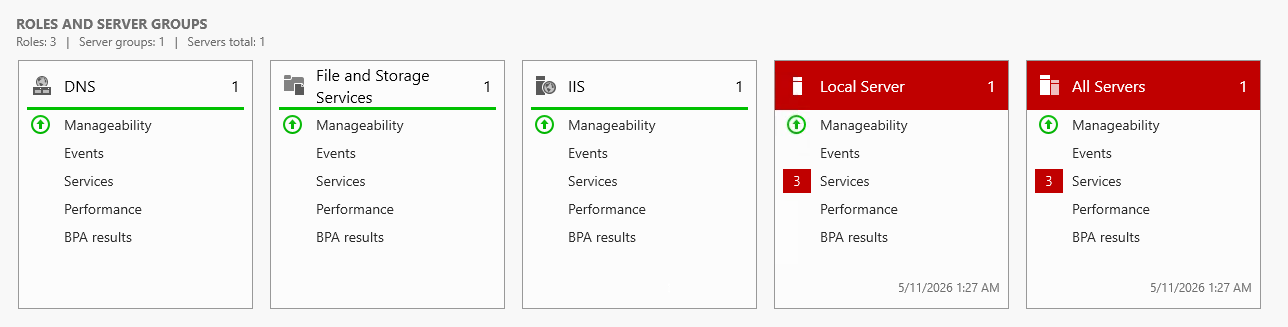
I opened Server Manager, which confirmed three installed roles: DNS, File and Storage Services, and Web Server (IIS). DNS is required. File and Storage Services is a default Windows role that cannot be removed. IIS is the one that needs to go.
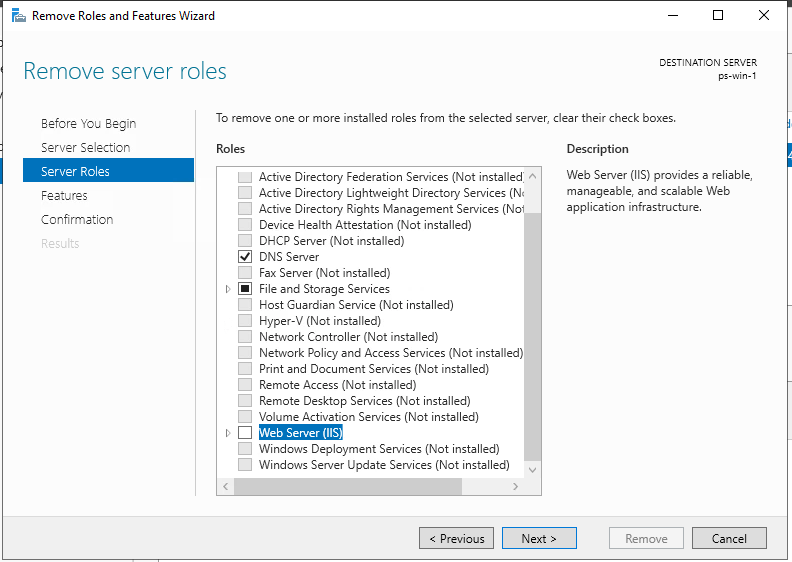
To remove it, I navigated to Manage → Remove Roles and Features, selected the server ps-win-1, deselected Web Server (IIS), and allowed the server to restart automatically to complete the removal.
After the restart, IIS and the HTTP listener are completely gone from the server.
Step 3 - Hardening User Accounts
3.1 - Reviewing the Administrators Group
With the unnecessary role removed, the next focus was on user accounts. I opened Computer Management → Local Users and Groups → Groups and reviewed the Administrators group. Any member of this group has complete, unrestricted access to the machine. At this point, both the default Administrator account and the pslearner account were members.
The default Administrator account is a well-known target for attackers. Because Windows always creates it with the same name, an attacker already knows half of what they need to authenticate, they just have to brute-force the password. Renaming it forces an attacker to discover both the username and the password, which significantly raises the bar.
3.2 - Renaming the Default Administrator Account
I right-clicked the Administrator account in Local Users and Groups → Users and renamed it to psadmin. This removes the predictability of the default name while preserving the account’s existing permissions and group memberships.
I then set a strong password for the account.
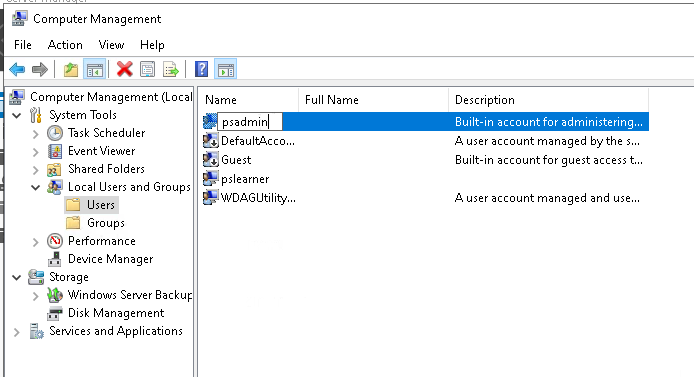
Best practice note: In a non-domain environment like this one, each administrator should have their own uniquely named account in the Administrators group. This enables non-repudiation, you can audit which administrator performed which actions. In a domain environment, unique domain admin accounts would be added to the Domain Administrators group instead.
3.3 - Disabling Unnecessary Accounts
After handling the Administrator account, I reviewed all other enabled accounts. The WDAGUtilityAccount (Windows Defender Application Guard) was enabled but is not needed for a DNS server to function. I opened its properties and checked Account is disabled.
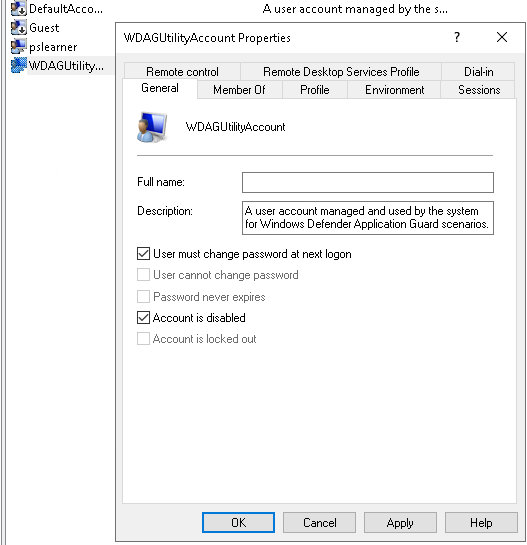
Disabling rather than deleting accounts is a common practice, it preserves the account history while ensuring it cannot be used to log in. Disabled accounts are identified in the UI by a downward-pointing arrow on the account icon.
Step 4 - Disabling Unnecessary Services
With accounts hardened, I moved on to Windows Services. Many services are enabled by default that have no relevance to DNS functionality. Running unnecessary services wastes resources and, more importantly, creates additional attack vectors. The principle here is the same as with roles: if it’s not needed, it should be off.
I opened Services from the Start menu and reviewed what was running. Three services were identified as unnecessary for a DNS server and disabled by changing their Startup type to Disabled:
- ActiveX Installer - Installs ActiveX controls from the internet; not needed on a server
- Downloaded Maps Manager - Manages offline maps; entirely irrelevant on a server
- Print Spooler - Manages print jobs; a DNS server has no printing function (and notably, the Print Spooler has a history of serious vulnerabilities like PrintNightmare)
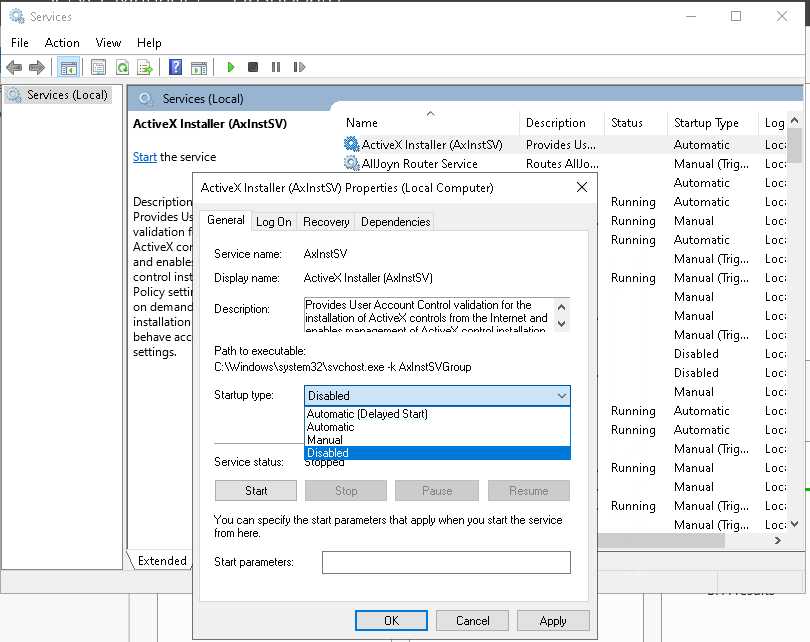
I also set the Application Identity service to Automatic and started it. This service is required for AppLocker (covered in the next step) to function. Without it, AppLocker rules are evaluated but not enforced.
Step 5 - Restricting Applications with AppLocker
The final and most powerful hardening technique in this lab was configuring AppLocker. AppLocker is a Windows feature that lets you define explicit rules for which applications are allowed to run. Any application not covered by an allow rule is blocked by default, this is a whitelist model, which is far more secure than a blacklist approach.
5.1 - Generating Default Allow Rules
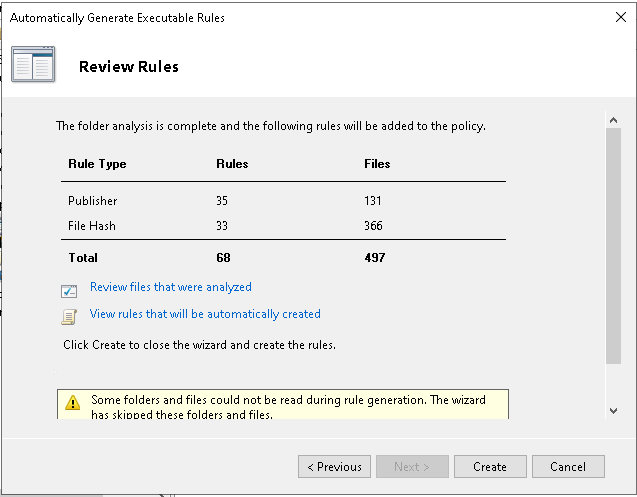
I opened Local Security Policy → Application Control Policies → AppLocker → Executable Rules, right-clicked, and selected Automatically Generate Rules. This scans the C:\Program Files directory and creates allow rules for all currently installed, legitimate programs.
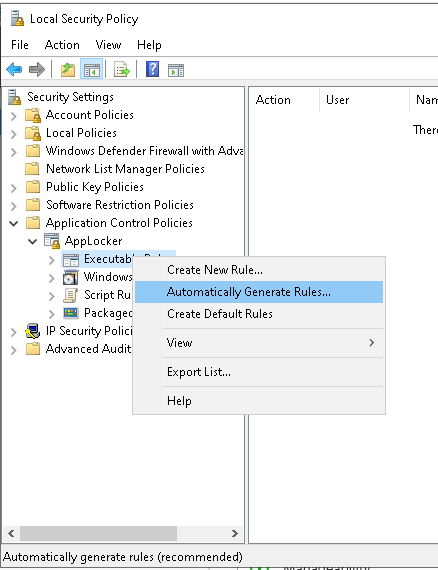
I named this rule set Default Programs and created the rules. This gives AppLocker a clean baseline of what is allowed to run.
5.2 - Creating a Deny Rule for Wireshark
To demonstrate how deny rules work, I located the Wireshark entry in the rule list (Default Programs: WIRESHARK signed by ...), opened its properties, and changed the Action from Allow to Deny.
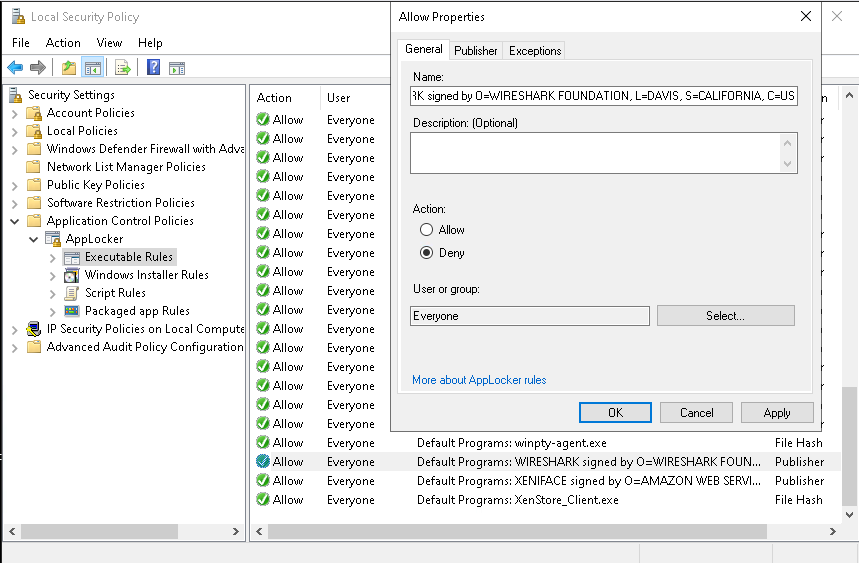
Deny rules take priority over allow rules. Any rule marked as Deny is shown with a red circle icon in the AppLocker interface so it can be quickly identified.
After applying the deny rule, double-clicking Wireshark on the desktop produces the following result:
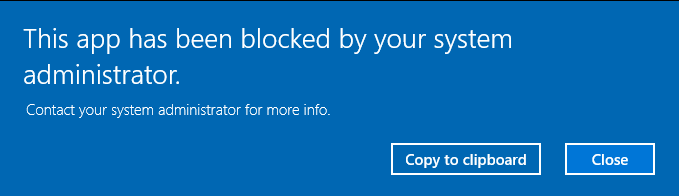
Production note: In a real environment, rather than creating a deny rule for everyone, you would create an allow rule scoped to only the users or groups who legitimately need the application. The deny-all approach here is for demonstration purposes.
Troubleshooting - AppLocker Rules Not Enforcing
After creating the Wireshark deny rule, Wireshark opened normally with no block message. Reloading the policy and restarting the server had no effect.
Root cause: The Application Identity service had stopped. AppLocker depends on this service to evaluate and enforce rules at runtime. If the service isn’t running, AppLocker rules are completely ignored, no errors are shown and applications launch as if no rules exist.
Resolution steps:
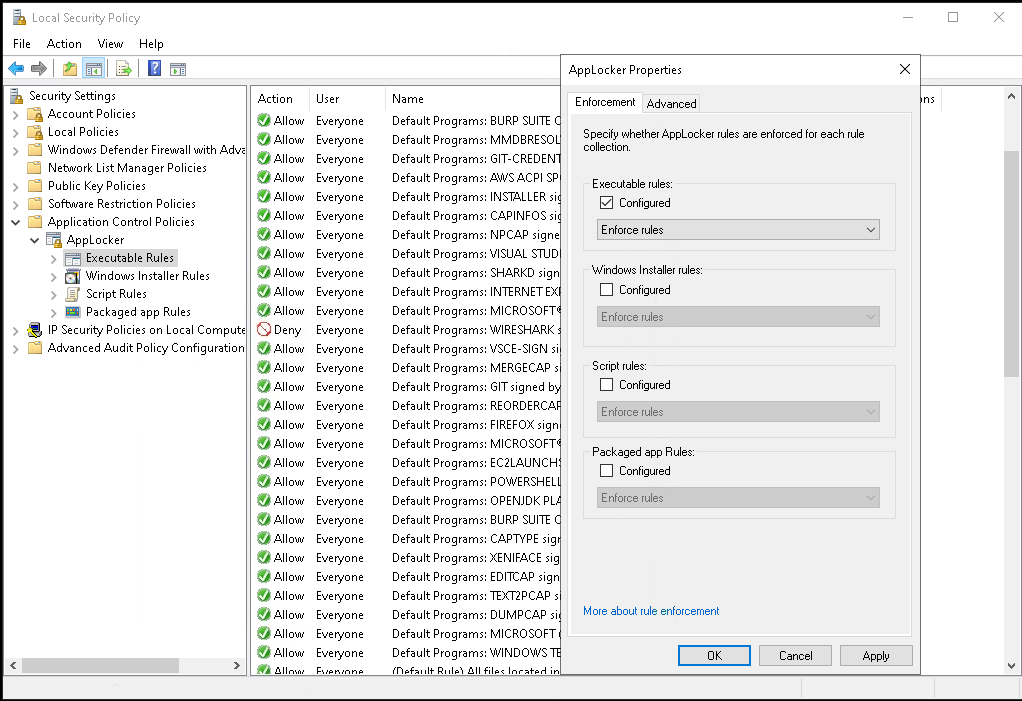
- Open Local Security Policy and navigate to AppLocker (the parent folder above Executable Rules)
- Right-click AppLocker and select Properties
- On the Executable rules tab, confirm the Configured checkbox is checked
- Ensure the dropdown is set to Enforce rules (not Audit only)
- Open Services, locate Application Identity, and start it (set Startup type to Automatic so it persists across reboots)
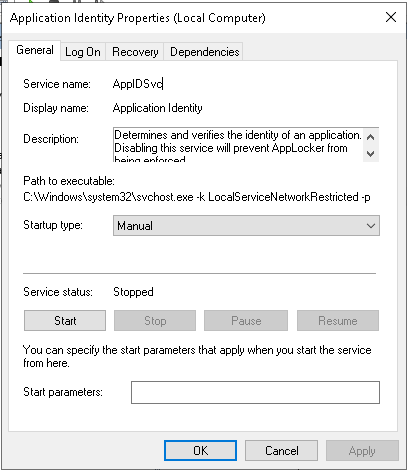
After starting the Application Identity service and confirming the AppLocker policy was set to Enforce rules, the Wireshark deny rule took effect immediately.
Step 6 - Final Verification Scan
With all hardening steps complete, I ran the Nmap scan one final time to confirm the changes were reflected in the server’s network exposure.
nmap -Pn 172.31.24.20Output:
pslearner@ip-172-31-24-30:~$ nmap -Pn 172.31.24.20
Starting Nmap 7.80 ( https://nmap.org ) at 2026-05-11 02:20 UTC
Nmap scan report for ip-172-31-24-20.ec2.internal (172.31.24.20)
Host is up (0.042s latency).
Not shown: 995 filtered ports
PORT     STATE SERVICE
22/tcp   open  ssh
53/tcp   open  domain
135/tcp  open  msrpc
445/tcp  open  microsoft-ds
3389/tcp open  ms-wbt-server

Nmap done: 1 IP address (1 host up) scanned in 23.16 seconds
Port 80 (HTTP) is gone. The server no longer advertises an HTTP listener, confirming that removing the IIS role was successful. Port 53 (DNS) remains open as expected. The attack surface has been meaningfully reduced from what it was at the start.
Summary
| Hardening Action | Reason |
|---|---|
| Removed IIS (Web Server role) | A DNS server doesn’t need to serve web content; port 80 had no business being open |
| Renamed default Administrator account | Eliminates a known username, forcing attackers to discover both credentials |
| Disabled WDAGUtilityAccount | Not needed for DNS functionality; unused accounts are unnecessary risk |
| Disabled ActiveX Installer, Downloaded Maps Manager, Print Spooler | Services unrelated to DNS operation; Print Spooler in particular has a history of exploitable vulnerabilities |
| Configured AppLocker with Enforce mode | Whitelists known-good applications; blocks anything else from executing |
This lab reinforced a fundamental mindset in system hardening: start from a position of denial and explicitly allow only what is needed. Whether it’s open ports, installed roles, enabled accounts, running services, or executable applications, if it isn’t required for the server’s primary function, it should be removed or disabled.