Windows
-
Downloading Terraform First, I head over to the official Terraform website to grab the latest version. In the downloads section, I select the
Windows_AMD64option, since that matches my system’s architecture. Clicking the link initiates the download of a.zipfile. -
Extracting the Terraform Executable Once the download finishes, I find the
.zipfile in my Downloads folder. I right-click on it and chooseExtract All..., which reveals theterraform.exewithin. I decide to keep it simple and leaveterraform.exeright there in the Downloads folder for now. -
Setting Up the Environment Variable Add.Edit Environment Variables (Windows)
-
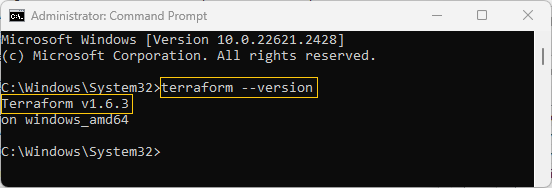
Testing the Terraform Command To check if everything’s working, I open a new Command Prompt window and type
terraform --version.
Success
Refresh the Variable
$env:PATH = [System.Environment]::GetEnvironmentVariable("Path", "User") + ";" + [System.Environment]::GetEnvironmentVariable("Path", "Machine")Linux
Went to terraform.io Mention how to launch and connect to EC2 to install terraform. Mention PuTTY
curl -O <URL to 64Bit Linux Download>
unzip terraform.zip
mv terraform /usr/local/bin
terraform --version
We had to install in PART1_PROJECT_16