Introduction
In production environments, it’s common to place a lightweight web server like Apache HTTP Server (httpd) in front of an application server like Apache Tomcat. This pattern is called a reverse proxy, Apache sits at the front door (port 80) and quietly forwards requests behind the scenes to Tomcat (port 8080).
Why do this instead of just exposing Tomcat directly?
- Port 80 is the standard HTTP port, users don’t need to type
:8080in their browser - Apache can handle SSL termination, caching, load balancing, and access control
- It keeps the application server shielded from direct public exposure
- It’s a common architecture in enterprise environments
In this lab, I worked on a Red Hat Enterprise Linux 8 (RHEL 8) server where Tomcat 9 was pre-installed and accessible on port 8080. My goal was to install and configure Apache httpd to act as a reverse proxy, making Tomcat available on the standard port 80, without modifying Tomcat itself.
Environment
| Setting | Value |
|---|---|
| OS | Red Hat Enterprise Linux 8 |
| Web Server | Apache HTTP Server (httpd) |
| Application Server | Apache Tomcat 9 (pre-installed) |
| Tomcat Port | 8080 |
| Target Port | 80 |
| Private IP address | 10.0.1.100 |
| Public IP address | 54.234.43.162 |
Step 1 - Verify Tomcat Is Running on Port 8080
Before installing anything, the first step was to confirm that Tomcat was already running and accessible. I opened a browser and navigated to the server’s public IP address with port 8080 appended:
http://54.234.43.162:8080
Expected output: The default Tomcat welcome page should load in the browser.
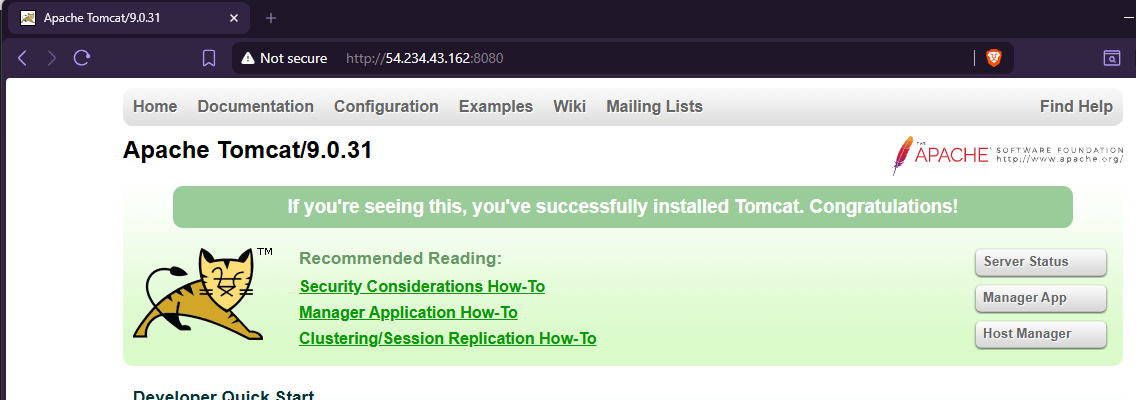
This confirms that Tomcat is healthy and the starting point is solid before we layer Apache on top.
Step 2 - Install Apache HTTP Server
Apache is not pre-installed on this server, so I installed it using dnf, RHEL 8’s package manager, then enabled and started the service.
sudo dnf install httpd
sudo systemctl enable httpd
sudo systemctl start httpd
What each command does:
| Command | Purpose |
|---|---|
dnf install httpd | Installs the Apache web server package |
systemctl enable httpd | Configures Apache to start automatically on boot |
systemctl start httpd | Starts the Apache service immediately |
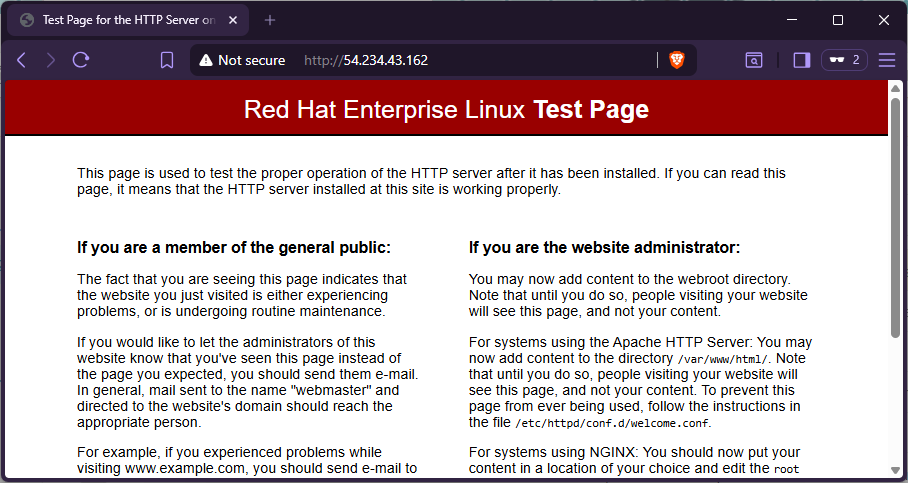
After running these commands, I opened a browser and navigated to the server’s public IP on port 80 (no port number needed, port 80 is the default for HTTP):
http://<PUBLIC_IP>
Expected output: The default Apache test page confirms the web server is installed and running.
Troubleshooting: Apache Won’t Start
If systemctl start httpd fails, check for port conflicts or syntax errors:
# Check what's currently using port 80
sudo ss -tlnp | grep :80

# Check Apache's own error log
sudo tail -f /var/log/httpd/error_log

# Validate config file syntax before restarting
sudo apachectl configtest
A common message like Syntax OK from configtest means the configuration is valid. Any AH error codes indicate what needs to be fixed.
Step 3 - Configure Apache as a Reverse Proxy via Virtual Host
This is the core of the lab. Apache needs to know that any request arriving on port 80 should be forwarded to Tomcat on port 8080. This is done through a Virtual Host configuration block.
Rather than editing the main Apache config file (/etc/httpd/conf/httpd.conf), the cleaner approach is to create a dedicated configuration file inside /etc/httpd/conf.d/. Apache automatically loads all .conf files from that directory, keeping configurations modular and easy to manage.
I created a new config file:
sudo vim /etc/httpd/conf.d/tomcat_manager.confWhy
conf.d/? Apache’s main config file includes a directive that automatically reads all*.conffiles from the/etc/httpd/conf.d/directory. Placing server-specific or application-specific configs here keeps them isolated and easier to enable/disable without touching the main file.
Inside the file, I added the following Virtual Host block:
<VirtualHost *:80>
    ServerAdmin root@localhost
    ServerName myserversystem.mylabserver.com
    DefaultType text/html
    ProxyRequests on
    ProxyPreserveHost On
    ProxyPass / http://localhost:8080/
    ProxyPassReverse / http://localhost:8080/
</VirtualHost>
Breaking down the key directives:
| Directive | Purpose |
|---|---|
<VirtualHost *:80> | Listens for any HTTP request arriving on port 80 |
ServerAdmin | Contact email for the server administrator |
ServerName | The hostname this virtual host responds to |
ProxyRequests on | Enables the proxy module |
ProxyPreserveHost On | Passes the original Host header to Tomcat (important for apps that check the hostname) |
ProxyPass / | Forwards all requests from / on port 80 → localhost:8080 |
ProxyPassReverse / | Rewrites redirect responses from Tomcat so they point back to port 80, not 8080 |
The ProxyPass and ProxyPassReverse pair is the heart of the reverse proxy, together they handle both the outbound request forwarding and the inbound redirect rewriting.
Step 4 - Adjust SELinux to Allow the Proxy
On RHEL systems, SELinux (Security-Enhanced Linux) is enabled by default and enforces strict policies on what each process is allowed to do. Out of the box, SELinux does not permit Apache to make outbound network connections, which is exactly what a proxy needs to do.
Rather than disabling SELinux (which would weaken the server’s security posture), I used setsebool to toggle specific boolean policies that grant Apache the permissions it needs:
sudo setsebool -P httpd_can_network_connect 1
sudo setsebool -P httpd_can_network_relay 1
sudo setsebool -P httpd_graceful_shutdown 1
sudo setsebool -P nis_enabled 1
What each boolean does:
| Boolean | Purpose |
|---|---|
httpd_can_network_connect | Allows Apache to initiate outbound network connections (required for proxying) |
httpd_can_network_relay | Allows Apache to act as a relay/proxy |
httpd_graceful_shutdown | Allows Apache to perform graceful shutdown operations |
nis_enabled | Enables NIS (Network Information Service) support, needed in some proxy setups |
The -P flag makes each change persistent across reboots. Without it, the settings would reset the next time the server restarts.
Troubleshooting: Proxy Returns a 503 or Forbidden Error
If Apache starts but the browser returns a 503 Service Unavailable or 403 Forbidden when proxying to Tomcat, SELinux is the most likely culprit on RHEL systems.
# Check if SELinux is blocking Apache
sudo ausearch -m avc -ts recent | grep httpd

# View current httpd-related SELinux booleans
sudo getsebool -a | grep httpd
A denial entry in the audit log pointing to httpd_can_network_connect confirms the SELinux booleans need to be set as shown above.
Step 5 - Restart Apache and Verify
With the configuration file in place and SELinux booleans updated, I restarted Apache to apply all changes:
sudo systemctl restart httpdThen checked the service status to confirm everything came up cleanly:
sudo systemctl status httpdExpected output:
● httpd.service - The Apache HTTP Server
   Loaded: loaded (/usr/lib/systemd/system/httpd.service; enabled; vendor preset: disabled)
   Active: active (running) since Tue 2026-04-28 17:18:54 UTC; 5s ago
     Docs: man:httpd.service(8)
 Main PID: 3770 (httpd)
   Status: "Started, listening on: port 80"
    Tasks: 213 (limit: 23396)
   Memory: 29.3M
   CGroup: /system.slice/httpd.service
           ├─3770 /usr/sbin/httpd -DFOREGROUND
           ├─3771 /usr/sbin/httpd -DFOREGROUND
           ├─3772 /usr/sbin/httpd -DFOREGROUND
           ├─3773 /usr/sbin/httpd -DFOREGROUND
           └─3774 /usr/sbin/httpd -DFOREGROUND

Apr 28 17:18:54 tomcat systemd[1]: Started The Apache HTTP Server.
Apr 28 17:18:54 tomcat httpd[3770]: Server configured, listening on: port 80
The key lines to look for are:
Active: active (running)- the service is upStatus: "Started, listening on: port 80"- Apache is bound to port 80
Note: You may see a warning like
AH00558: httpd: Could not reliably determine the server's fully qualified domain name. This is a non-critical warning about hostname resolution and does not affect the proxy functionality.
Troubleshooting: Apache Fails to Restart
# Check the full journal log for this service
sudo journalctl -xe -u httpd

# Validate config syntax before restarting
sudo apachectl configtest

# Look at the error log directly
sudo tail -n 50 /var/log/httpd/error_log
The most common causes are a typo in the .conf file or a missing proxy module. The configtest output will point directly to the problem line.
Step 6 - Test Tomcat Is Now Accessible on Port 80
The final test: navigate to the server’s public IP in a browser without specifying a port. If the reverse proxy is working, Apache will silently forward the request to Tomcat and return the Tomcat interface.
http://54.234.43.162
Expected output: The Tomcat welcome page, previously only visible on port 8080, now loads on port 80.
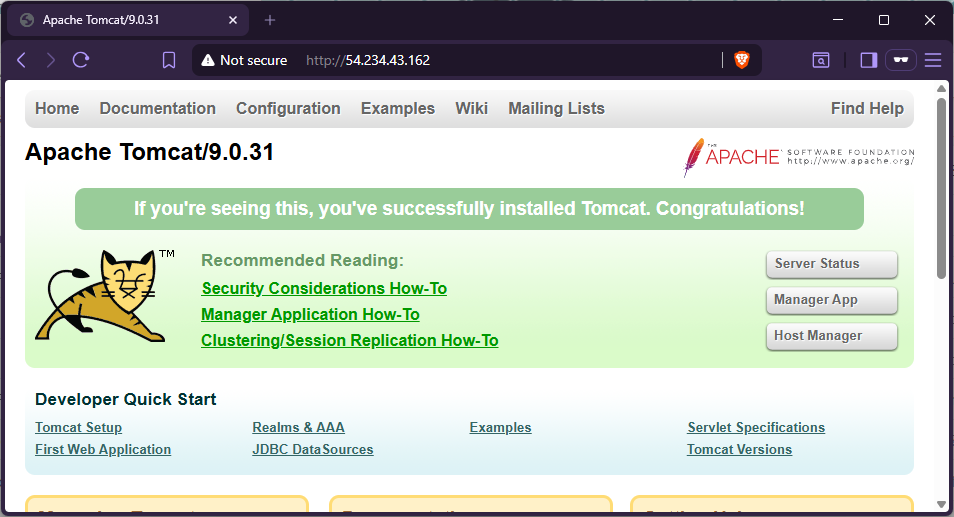
Compare this to Step 1 where the same page required :8080 in the URL. The user experience is now seamless, and Tomcat never needed to be reconfigured.
How It All Fits Together
User Browser
     │
     │  HTTP request → port 80
     ▼
┌─────────────────────┐
│   Apache httpd      │  ← Virtual Host config (tomcat_manager.conf)
│   (port 80)         │
└────────┬────────────┘
         │  ProxyPass → http://localhost:8080/
         ▼
┌─────────────────────┐
│   Apache Tomcat 9   │
│   (port 8080)       │
└─────────────────────┘
Apache acts as the gatekeeper, all traffic enters through port 80, and Tomcat never needs to be exposed directly to the public. The ProxyPassReverse directive ensures that even Tomcat’s internal redirects are rewritten to appear as if they’re coming from port 80.
Key Takeaways
- Reverse proxies decouple the web tier from the application tier, a best practice in enterprise architecture
- Apache’s
conf.d/directory is the right place for modular, application-specific configs rather than editing the main config file - SELinux is not the enemy, it just requires explicit permission grants when services need to cross process boundaries.
setsebool -Pis the right tool for this ProxyPass+ProxyPassReversework as a pair: the first forwards requests, the second rewrites redirects coming back- This same pattern scales to load balancing across multiple Tomcat instances by adding more
ProxyPassentries